About this tool
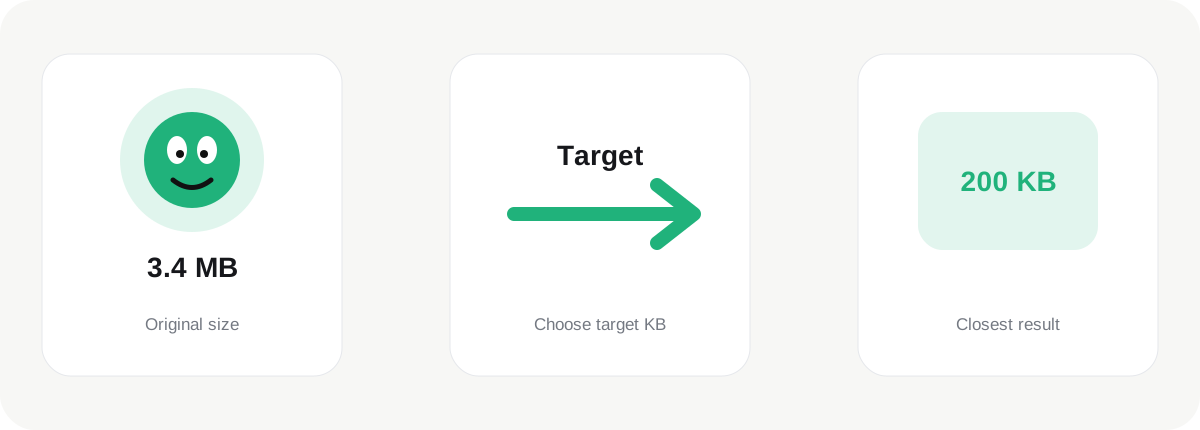
Upload forms often care about one thing more than any other image setting: the file must be under a specific size limit. Compress to Target KB is designed around that exact problem. Instead of asking you to guess a JPG quality value, the browser automatically tests a sequence of quality levels and keeps the result that comes closest to the requested target.
How it works
The target is a goal rather than a guaranteed byte-perfect result. JPG encoding is content-dependent, and there are practical limits to how small a full-resolution image can become before quality deteriorates heavily. The tool therefore searches within a sensible quality range and selects the closest generated file it finds. A result may land slightly above or below the requested number of kilobytes.
What affects the result
If the target cannot be reached cleanly with compression alone, dimensions are the next lever. A 6000×4000 photograph contains far more pixels than most online forms need. Resizing the image before targeting 100 KB or 200 KB can produce a clearer result than forcing extreme JPEG compression onto the original dimensions. This is why the output should always be judged visually, not only by the number.
When to use it
Common use cases include application forms, government or education portals, profile-photo uploads, job systems, email attachments and websites that reject files above a fixed limit. For general website optimization without a hard limit, the regular Compress Image or Compress JPG page gives you more direct quality control.
Best practice
The original image should be kept separately because the target-size result is a delivery copy optimized for a particular restriction. If a different portal later requests 500 KB instead of 200 KB, creating a fresh version from the original will normally preserve more quality than recompressing the already reduced file.
What if the target is too small?
Some targets are unrealistic for the original dimensions and visual complexity. A large detailed photo may not remain attractive at 50 KB even when the encoder reaches a very low quality level. If the result is still above your limit or becomes visibly damaged, reduce the image dimensions first and run the target-size tool again. Removing unnecessary pixels gives the compressor less information to store, which often reaches the required limit with better visual quality than forcing extreme compression alone. For strict portals, leave a little safety margin below the published limit because some systems calculate kilobytes differently.